From the page you are looking at to the file you send
InnoShot is four steps: capture, edit, beautify, export. This page walks through each one, and explains what happens inside your browser while it does.
One gesture starts it, nothing leaves your computer
Every step below happens inside Chrome on your own machine. There is no server in the middle.
-
You ask
A click on the toolbar icon, a keyboard shortcut or the right-click menu. That gesture is what lets InnoShot see this one tab.
-
InnoShot captures
A small helper is injected into the page for the capture, scrolls if needed, takes the screenshots, then removes itself and restores the page.
-
You edit
The result opens in the InnoShot editor in a new tab. Every change is a layer, autosaved in your browser.
-
You export
PNG, JPEG, WebP, SVG or PDF to your computer, or a copy on the clipboard. The project stays in your local history.
Capture
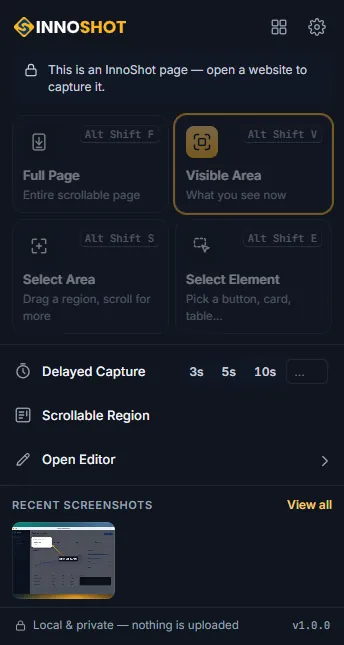
Open the page you want and start a capture in one of three ways: click the InnoShot icon in the toolbar and pick a mode, press one of the keyboard shortcuts, or right-click the page and use the InnoShot menu.
Each of these is a deliberate action on that tab, and that is what grants InnoShot access to it, through Chrome's activeTab permission. InnoShot cannot see any tab you have not asked it to capture.
Full-page and tall element captures are taken one screen at a time and stitched together. Chrome allows an extension two screen captures per second, so a long page takes a few seconds; you can follow the progress and press Esc to cancel. For menus and tooltips that disappear when you click, use a delayed capture of 3, 5 or 10 seconds, or any time from 1 to 60 seconds.
| Mode | Shortcut |
|---|---|
| Visible areaWhat is on screen now. | Alt+ Shift+ V |
| Full pageThe whole page, scrolled and stitched. | Alt+ Shift+ F |
| Selected areaDrag a region; it can run below the screen. On ChromeOS: Alt+Shift+Q. | Alt+ Shift+ S |
| ElementPoint at a part of the page and press Enter. | Alt+ Shift+ E |
Chrome may leave a suggested shortcut unassigned if it clashes with a Chrome or system shortcut or with another extension. "Open editor", "Capture scrollable region" and "Delayed capture" have no shortcut until you assign one.
Edit, then beautify
The capture opens in the InnoShot editor in its own tab: the top bar has the name, undo and redo, zoom, copy and export; the tools are on the left; the settings for whatever you selected are on the right; and a layers panel lists everything you have added.
Editing never destroys the original. A crop can be widened again later, adjustments can be turned off, and every arrow, label, spotlight or glass panel is a layer you can move, restyle, hide or delete. One drag or slider movement is one undo step.
To make it presentable, place the capture on a background with padding, rounded corners and a shadow, wrap it in a browser or device frame, and use a spotlight or glass panel to direct attention.
 orbitly-revenue.png
Export, copy or keep
Choose the format that suits where the image is going, or copy it straight to the clipboard. Very large captures are never cropped to fit: InnoShot offers numbered files, a scaled image or a PDF instead.
| Format | Good for | Options |
|---|---|---|
| PNG | Interfaces, text and sharp edges; transparent backgrounds. | Scale, transparency, file name |
| JPEG | Smaller files where photos dominate. | Quality, scale, file name |
| WebP | Small files for the web, with transparency. | Quality, scale, transparency |
| Long pages and documents to share or print. | A4, Letter, fit or original; orientation; margins; header and footer; pagination | |
| SVG | Documents that need annotations to stay sharp at any size. | Vector annotations over a flattened image |
| Clipboard | Pasting into chat, email or a document. | PNG, copied from the editor |
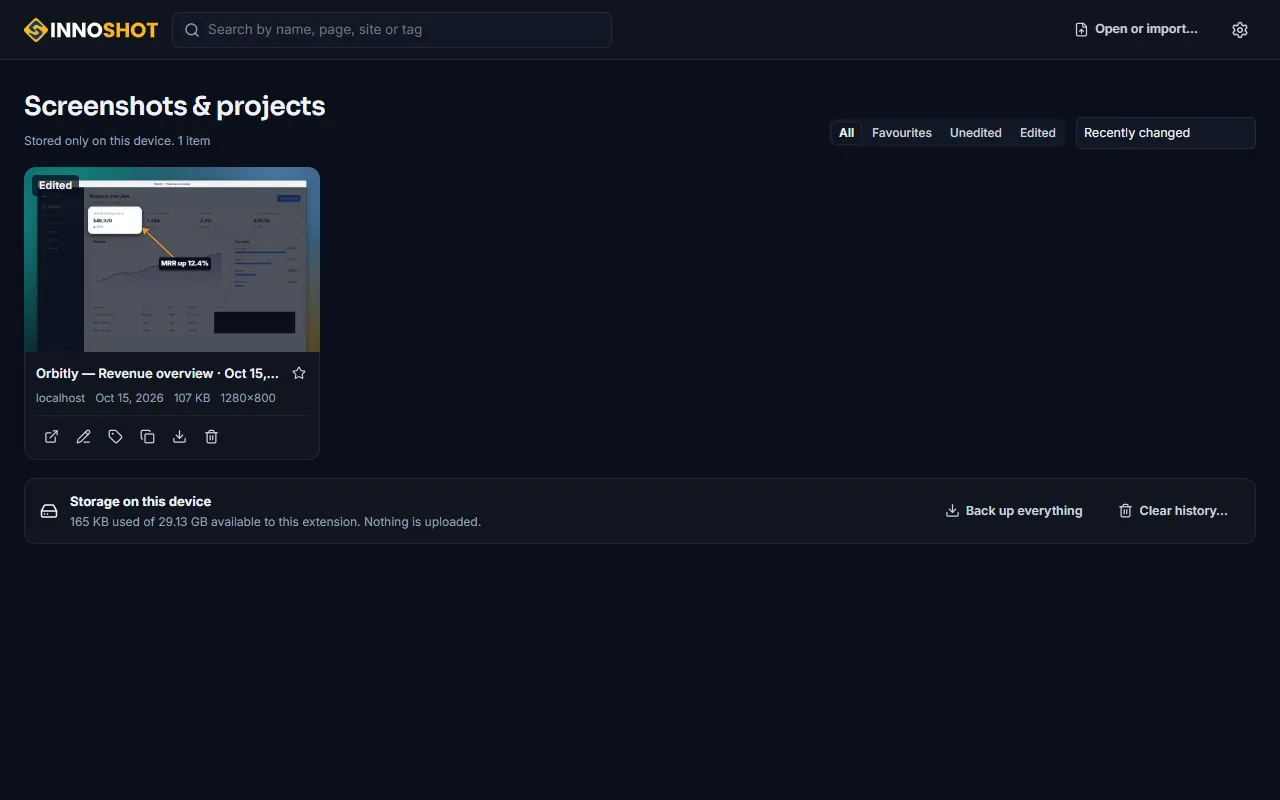
Captures and projects stay in your browser's own storage, in the InnoShot library, until you delete them. You can back a project up as an .innoshot file and open it again later. Projects and history
Ready when you are
Install InnoShot and your next capture is one shortcut away.
For Google Chrome on desktop. Coming to the Chrome Web Store.