Turn a long screenshot into a PDF people can read
Export any capture from the InnoShot editor as a PDF on A4 or Letter paper, or on pages shaped to the image. A long full-page capture is spread across as many pages as it needs instead of being shrunk onto one, with margins and optional header or footer text. The PDF is written inside your browser, so nothing goes to an online converter.
One very tall image is awkward to share. A document is not.
A full-page capture of an article or a help page can be many screens tall. As a single image it is awkward to scroll through, prints badly, and is easy for a chat or email app to shrink until the text cannot be read. A PDF opens in any reader, pages through naturally and prints on ordinary paper.
InnoShot builds the PDF itself, in the editor, from the image you have finished working on, so your crop, annotations, highlights, background and redactions are all in it. On A4 or Letter pages, a capture taller than one page continues on the next page at a readable size rather than being squeezed onto a single sheet.
The PDF holds a picture of the page, not the page's text. That is what keeps it looking exactly as it did on screen, with your edits in place, but it also means the words cannot be selected, searched or copied. When you need live text, Chrome's own Save as PDF is the better tool.
How to save a webpage screenshot as a PDF
-
1
Capture the page
Take a full page, selected area or element capture. It opens in the InnoShot editor, where you can crop, annotate or redact it first.
-
2
Choose PDF in the export options
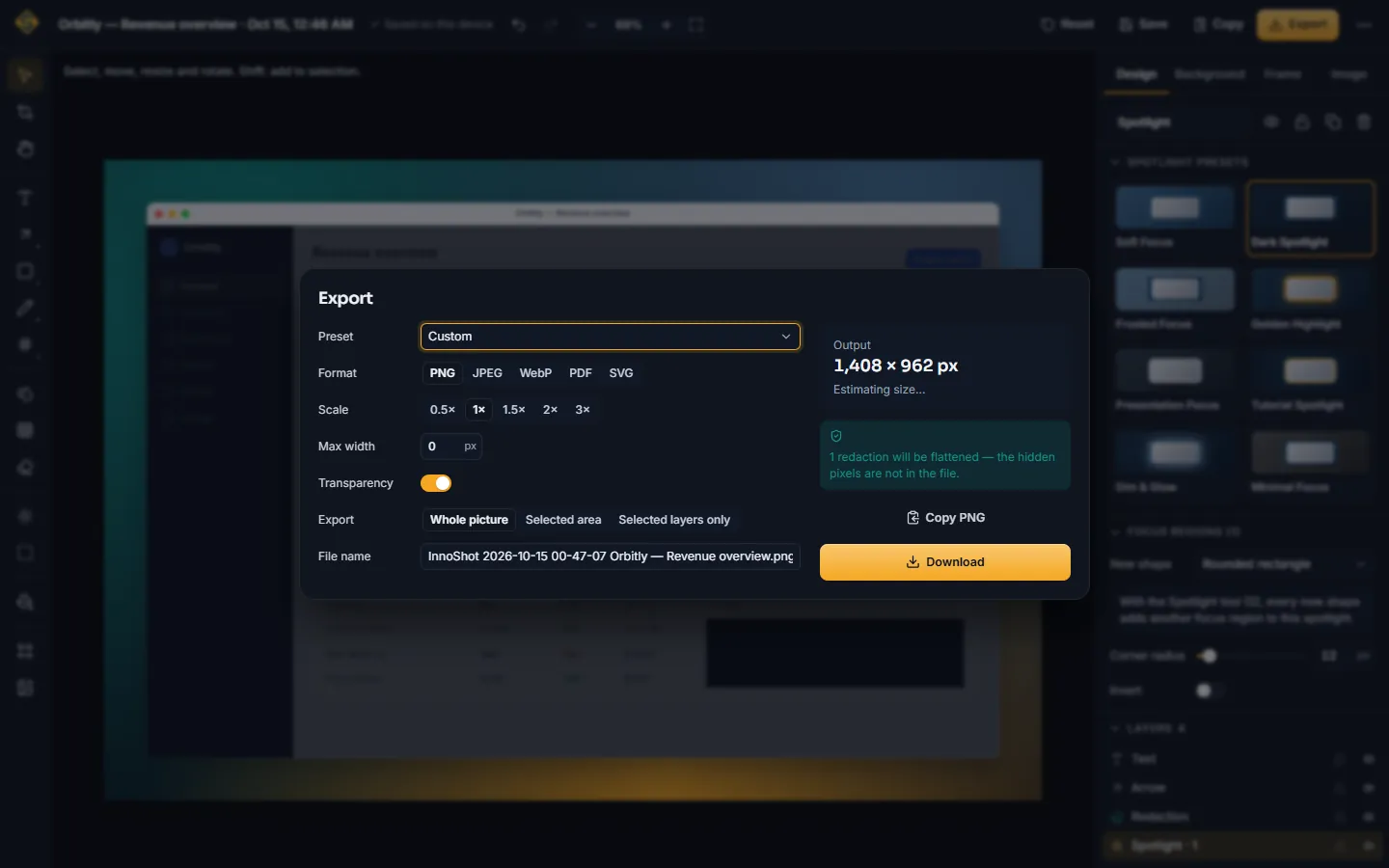
Use the export control in the editor's top bar and pick PDF as the format.
-
3
Set up the pages
Pick Fit, Original size, A4 or Letter, choose portrait or landscape, set the margins, and add header or footer text if you want a title or the source on the pages.
-
4
Choose compression and save
JPEG keeps the file small; lossless keeps every pixel exact. Save, and the PDF goes through Chrome's normal downloads like any other file.
A PDF set up for reading, sharing or printing
-
Paper or image-shaped pages
A4 and Letter for anything that might be printed. Fit gives the page the shape of your image, and Original size keeps the image at its own dimensions instead of scaling it to paper.
Learn more about paper or image-shaped pages -
Portrait or landscape
Portrait for articles, forms and documentation. Landscape for dashboards, spreadsheets and timelines that are wider than they are tall.
-
Readable pagination
A tall capture is divided across pages at a size you can read, so a long article becomes a multi-page document rather than a thin strip on one sheet.
-
Margins, header and footer
Add white space around the image for printing, and short header or footer text such as a title, the site you captured or a date.
-
JPEG or lossless images
JPEG compression gives smaller files for email and photo-heavy pages. Lossless keeps text and interface edges exact, at a larger file size.
-
A way out for oversized captures
When a capture is too big for the browser to export as one image, PDF is one of the options InnoShot offers, alongside numbered files and a scaled-down copy. Nothing is cropped silently.
Learn more about a way out for oversized captures
Good to know
A screenshot PDF is a document made of images, which has a few consequences.
- The words are part of the image
- InnoShot places the screenshot in the PDF as an image. People can read it, but they cannot select, search or copy its text, and screen readers cannot read it aloud. If others need the text itself, share the page link as well, or use Chrome's print dialog to save a text-based PDF.
- Wide captures on portrait pages look small
- A wide capture on a narrow portrait page can make its text look tiny. Try landscape or Fit, reduce the margins, and zoom in on the PDF before you judge the detail.
- Lossless PDFs of long pages are large
- A long capture stored losslessly can make a big file. Choose JPEG compression when the PDF is going by email, and keep lossless for text-heavy pages that will be zoomed in on or printed.
Screenshot to PDF questions
Something else? The full FAQ and the documentation go further.
How is this different from Print > Save as PDF in Chrome?
Chrome's print dialog (Ctrl+P, or Cmd+P on a Mac) with Save as PDF as the destination does not use a screenshot at all. It lays the live page out again for paper: the site's print styles apply, the content reflows to the paper width, page breaks fall where the browser decides, and backgrounds can disappear unless you turn on Background graphics. The text is usually selectable. An InnoShot PDF shows the page exactly as it looked on screen, with your edits, but as an image. Use Chrome's option when you need the text, and InnoShot when you need a record of how the page looked.
Will a long page be shrunk onto one sheet?
No. On A4 or Letter pages, InnoShot spreads a tall capture across as many pages as it needs, at a size you can read, instead of shrinking it until the text is too small to make out.
Which image compression should I choose?
Lossless for captures that are mostly text and interface, or that will be zoomed in on or printed: every pixel stays exact. JPEG when file size matters more, for example for email, or when the capture is mostly photos. JPEG loses a little detail, which shows first around sharp edges and small text.
Is my screenshot uploaded to make the PDF?
No. InnoShot writes the PDF itself, inside your browser, and saves it through Chrome's downloads. The extension makes no network requests, so the capture never leaves your computer.
Keep reading
- PDF export settings Page size, orientation, margins, header and footer, and compression.
- How to convert a long screenshot into a PDF Chrome printing, the manual slicing method and the InnoShot way compared.
- Very large images Split files, a scaled copy or a PDF when a capture is too big.
- Full page screenshots Capture the whole page before you turn it into a PDF.
- Export problems Small-looking PDFs, large files and downloads you cannot find.
Explore more
See every capability on the features overview or browse all tools.
Turn your next long capture into a document
Free, no account, and the PDF is made on your computer, not on a server.
For Google Chrome on desktop. Coming to the Chrome Web Store.