Put any screenshot in a clean browser window
A browser frame tells people at a glance that they are looking at a website. InnoShot draws the window around your capture: Chrome-style, generic, minimal, rounded, macOS-inspired or Windows-inspired, in light or dark, with window controls and an address bar showing a URL you have checked. For mobile and tablet layouts, drawn device frames do the same job.
Context from a browser window, without the clutter of yours
A cropped web page floating on its own can pass for a poster or a document. Wrap it in a browser window and the reader knows straight away that it is a site, which helps in documentation, case studies, pitch decks and landing pages.
Capturing your real browser window gives you a frame too, but it brings along your open tabs, bookmarks, extension icons and whatever address happens to be in the bar. A drawn frame shows only what you decide: a tidy toolbar, the window controls and a URL you have read through.
InnoShot draws every frame itself rather than pasting in a photo of a window or a device, so the edges stay sharp when you export at a larger scale. The frame belongs to the composition, which means you can switch style, flip between light and dark or remove it later without touching the screenshot.
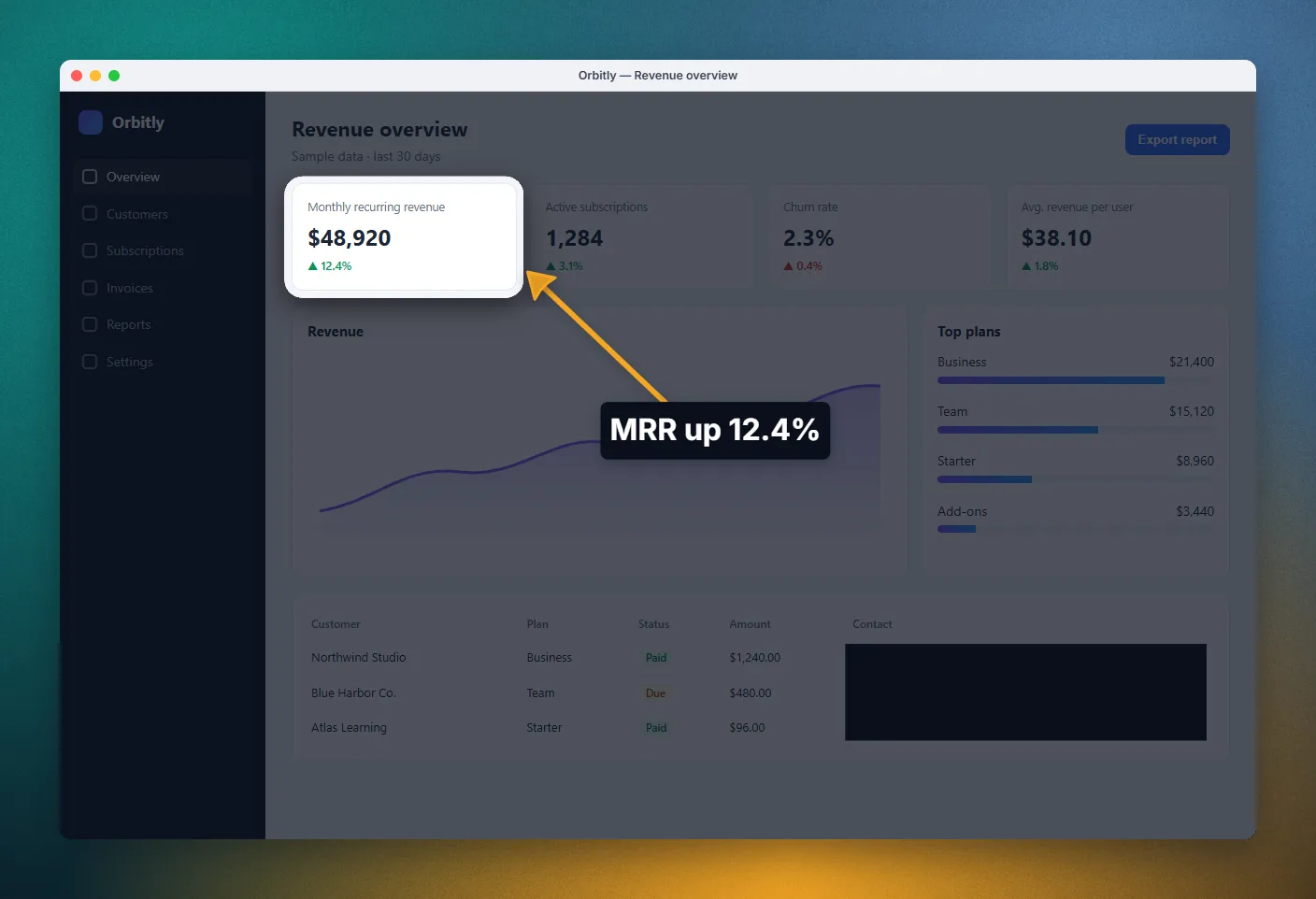
How to make a browser mockup from a screenshot
-
1
Capture the page
Capture the visible area, a selected area, a single element or the full page. The screenshot opens in the InnoShot editor.
-
2
Choose a frame
Open the Frame tab in the editor's inspector and pick a browser style or a device frame.
-
3
Pick light or dark
Choose the version that suits the interface inside it: matching it for a seamless look, or the opposite for contrast.
-
4
Check the address bar
Read the URL before you share. If it shows anything private, switch to the frameless style or crop the frame out.
-
5
Add a background and export
Set padding and a background behind the framed window if you want a canvas around it, then export the image or copy it to the clipboard.
Browser windows and devices, drawn to stay sharp
-
Browser styles
Chrome-style, generic, minimal and rounded windows, plus macOS-inspired and Windows-inspired frames drawn in the spirit of each system. Frameless keeps just the screenshot.
-
Light and dark
Every browser style comes in a light and a dark version, so the frame can blend with the interface or set it off.
-
Address bar and window controls
An address bar with a URL and the familiar window buttons make the frame read as a real browser window.
-
Device frames
Desktop, laptop, tablet, phone and generic mobile outlines for responsive layouts. Put a narrow capture in a phone frame and a wide one in a laptop or desktop frame.
-
Drawn, not photographed
Frames are drawn shapes rather than bitmap photos of real hardware, so they stay crisp at any export scale and in every format, including PDF.
-
Part of the composition
Frames combine with backgrounds, padding, rounded corners and shadow. Effects such as spotlight and glass stay inside the screenshot and never draw over the frame.
Learn more about part of the composition
Good to know
A frame makes a screenshot look finished, so check it as carefully as the content inside.
- Read the URL before you share
- Addresses often reveal more than the page does: internal admin paths, staging servers, account or order IDs, invite codes, session or reset tokens in the query string, and search terms. If anything should not be public, use the frameless style instead.
- Inspired, not official
- The Chrome-style, macOS-inspired and Windows-inspired frames are InnoShot's own drawings in the style of those windows. They are not official Google, Apple or Microsoft artwork or mockup templates.
- Match the capture to the device
- A full desktop layout squeezed into a phone outline looks unconvincing. For a phone or tablet frame, use a capture of the page's mobile layout, and keep wide captures for laptop and desktop frames.
Browser mockup questions
Something else? The full FAQ and the documentation go further.
How do I put a screenshot in a browser frame?
Open the capture in the InnoShot editor, open the Frame tab in the inspector and choose a browser style. Pick light or dark, check the URL in the address bar, then add a background and padding if you want the window to sit on a canvas.
Are these official macOS, Windows or Chrome mockups?
No. InnoShot draws them in the style of those windows, which is why they are called macOS-inspired, Windows-inspired and Chrome-style. They are not official Apple, Microsoft or Google assets.
What if the address bar shows something private?
Choose the frameless style to drop the window altogether, or crop the frame out. Always check that the URL does not reveal private paths, IDs or tokens before you share.
Why not just screenshot my whole browser window?
You can. On Windows, press Win+Shift+S and choose the window mode in Snipping Tool. On macOS, press Cmd+Shift+4, then Space, and click the window. The result shows your real toolbar, including open tabs, bookmarks, extension icons and the current address. A drawn frame shows only what you choose, and you can switch or remove it later.
Do the device frames use photos of real devices?
No. The desktop, laptop, tablet, phone and generic mobile frames are drawn shapes, not bitmap photos of particular products, which keeps them sharp when you export at a larger scale.
Keep reading
- Browser and device frames Every frame style, and what to check in the address bar.
- How to make browser screenshots look professional Frames, backgrounds and spacing that work together.
- Screenshot backgrounds Add padding, a gradient and a shadow around the framed window.
- Screenshot privacy Redact what the page shows before you frame and share it.
More in Beautify
- Spotlight effect Dim, blur or desaturate everything except the part you want people to look at.
- Glassmorphism effect Frosted glass panels that blur and tint the real pixels beneath them.
- Screenshot backgrounds Backgrounds, padding, rounded corners and shadow that make a capture presentable.
- All features
Give your next screenshot a proper window
Browser and device frames come with the free editor. No account, no watermark, no upload.
For Google Chrome on desktop. Coming to the Chrome Web Store.