A real screenshot editor, right in your browser
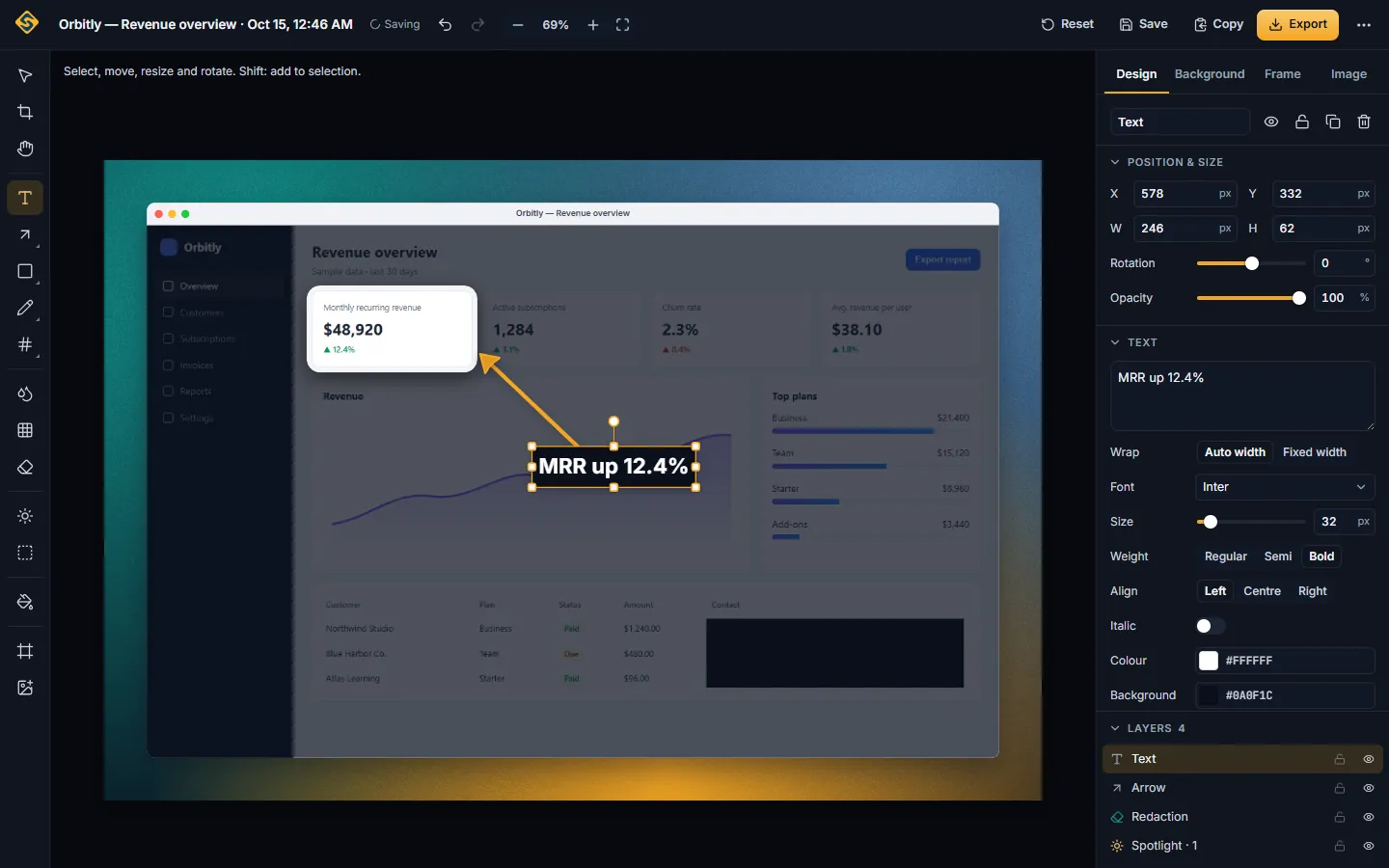
Every InnoShot capture opens in a dedicated editor tab. Crop without losing pixels, rotate and straighten, tune brightness and color, and add annotations, effects and backgrounds as separate layers you can change later. Undo works one gesture at a time, autosave keeps your work, and everything stays on your computer.
 orbitly-revenue.png
Room to work on every capture
A screenshot often needs more than a quick scribble before it is ready to share: a tighter crop, a couple of arrows, a label, a hidden email address, a cleaner background. InnoShot gives every capture its own browser tab for that work, with a canvas you can zoom and pan, tools on the left, options on the right, and the page you captured left untouched in its own tab.
Nothing you do in the editor is baked in. The crop is a frame over the original capture, adjustments are settings rather than repainted pixels, and every arrow, label, blur or spotlight is a layer of its own. You can reopen a project days later and widen the crop, recolor an arrow or delete a highlight.
The editor needs no internet connection and no account. Captures, projects and history are stored locally in your browser, and exports are written on your computer.
How to edit a screenshot in your browser
-
1
Capture something
Take a visible area, full page, selected area or element capture. The editor opens in a new tab with the image ready.
-
2
Pick a tool from the left rail
Crop and transform, adjustments, annotations, privacy tools, effects and presentation tools are all on the rail. The inspector on the right shows the options for whatever is selected.
-
3
Arrange your layers
Select, move, resize and rotate anything you add. Smart guides help you line things up, and the layers panel lets you group, lock, hide and reorder.
-
4
Save, copy or export
Autosave keeps the project in your history. Copy a PNG to the clipboard, or export PNG, JPEG, WebP, PDF or SVG from the top bar.
Everything a screenshot needs, in one tab
-
A clear layout
The top bar holds the project name, undo and redo, zoom, reset, save, copy and export. Tools sit on the left, options on the right, and the layers panel folds away when you need more room.
Learn more about a clear layout -
Crop and transform
Crop with ratio presets, rotate in 90° steps, flip, straighten a tilted image, and resize or scale the canvas. The crop never throws pixels away, so you can widen it again.
Learn more about crop and transform -
Adjustments and filters
Brightness, contrast, saturation, sharpness, hue, grayscale, sepia and vignette, plus color filter presets. They change the screenshot only, never the colors of your annotations.
Learn more about adjustments and filters -
Remove a background by hand
Brush away parts of the screenshot to make them transparent, for example to cut out a card or a button. Each stroke is its own layer, so hiding or deleting it brings the pixels back. Export PNG or WebP to keep the transparency.
-
Layers you can rearrange
Multi-select, align, group, duplicate, lock, hide and reorder anything you have added. Smart guides appear as you drag, so labels and shapes line up without effort.
Learn more about layers you can rearrange -
Undo and autosave
A whole drag, a slider movement or a burst of typing is one undo step, so you step back through real changes, not single pixels or letters. Autosave stores edits as you work, or you can switch it off and save by hand.
-
Projects and backups
Your history lists your captures and projects with thumbnails, and lets you rename, tag, favorite, search, sort and reopen them. Export a .innoshot backup to keep a project safe or move it to another computer.
Learn more about projects and backups
Good to know
The editor works entirely inside your browser, which shapes a few things.
- Projects live in this Chrome profile
- History and projects are kept on this computer, with no cloud copy and nothing synced to your other devices. Removing the extension deletes its data, so export .innoshot backups of anything you want to keep first.
- Backups keep the original pixels
- A .innoshot file stays editable, so it also keeps what is under your crops, blurs and redactions. InnoShot warns you when a project contains redactions and offers Apply redactions to source, which burns them in for good. To share a finished image, export PNG, JPEG, WebP or PDF.
- Captures start on the page
- Chrome only lets an extension capture a tab after you click its icon, press its shortcut or use its menu on that page. You cannot open the editor first and capture a page from inside it later.
Screenshot editor questions
Something else? The full FAQ and the documentation go further.
My computer can already mark up screenshots. What does the editor add?
For a quick scribble, the tools built into your system may be enough: Snipping Tool on Windows lets you draw with a pen or highlighter and crop, and on a Mac you can mark up a screenshot from its thumbnail or in Preview. The InnoShot editor is built for more involved work: layers you can move and restyle later, a crop you can widen again, numbered markers, permanent redaction, spotlights, backgrounds, frames, PDF export, and projects you can reopen from your history.
Will editing change my original screenshot?
No. The original capture is kept as it was. Crop, rotation, adjustments and layers are stored as edits on top of it, so you can change or remove them at any time, even after reopening the project. The one deliberate exception is Apply redactions to source, which burns redactions into the stored image when you choose it.
Where are my edits saved?
In your browser, on your computer. With autosave on, the editor saves as you work and the project appears in your InnoShot history, where you can rename, tag, favorite and reopen it. There is no account and nothing is uploaded. To move a project to another computer, export it as a .innoshot backup and import it there.
Does the editor have keyboard shortcuts and a dark mode?
Yes. Tools and actions have keyboard shortcuts, listed in the shortcut guide in InnoShot's Settings. The editor follows the theme you choose there: light, dark or the same as your operating system. A reduced motion option cuts down on animations in the interface.
Keep reading
- The editor and its tools A tour of the top bar, tool rail, inspector and layers panel.
- Layers Select, align, group, lock and reorder everything you add.
- Image adjustments What each slider does, and when to leave colors alone.
- Project backups Export and import .innoshot files, and what they contain.
- Annotate screenshots Arrows, text, shapes, numbered markers and callouts.
Give your next capture a proper edit
Free, with no account and no watermark. Your projects stay in your browser.
For Google Chrome on desktop. Coming to the Chrome Web Store.