Hide what matters in a screenshot, and keep the screenshot to yourself
InnoShot separates cosmetic blur and pixelate from permanent redaction, so you always know which one actually removes information. Redaction boxes are opaque and flattened into every image and PDF you export. The whole process happens in your browser: no uploads, no network requests, no account, and no access to a site until you start a capture on it.
What the image shows, and where the image goes
Screenshots leak in two ways. The first is the picture itself: an email address in a sidebar, a customer name in a table, an API key on a settings page or a token in the address bar, covered with something that looks secure but is not. The second is the tool: a screenshot service that uploads or stores your images puts a copy on a server you do not control.
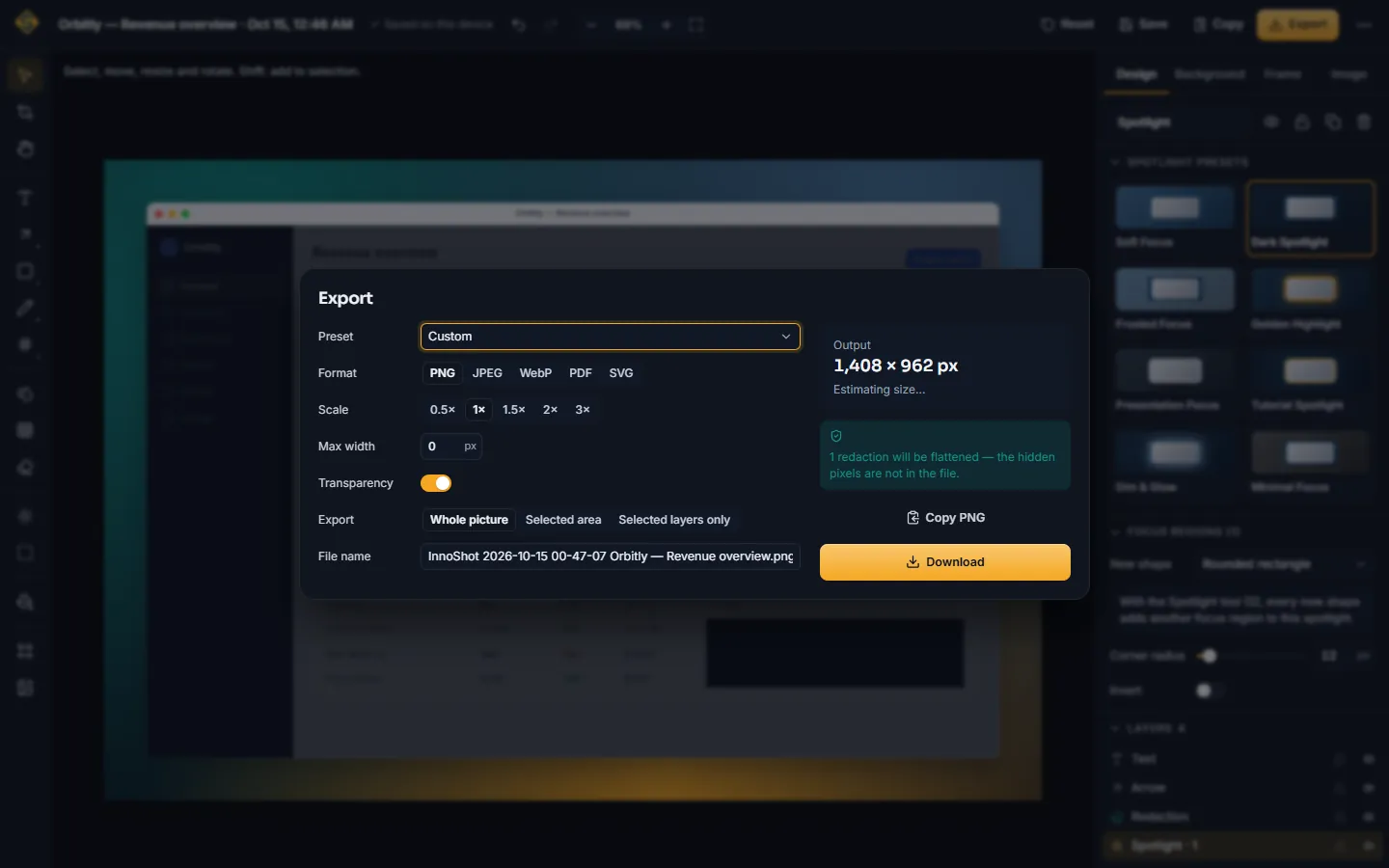
InnoShot handles the first with three distinct tools. Blur and pixelate soften detail and are labeled cosmetic, because a blurred or pixelated area is still built from the original pixels, and security researchers have reconstructed text from both. Redaction is different: an opaque box that replaces the pixels beneath it in every exported PNG, JPEG, WebP and PDF, and in the image inside an SVG export.
It handles the second by not having a server. Capture, editing and export run inside the extension, which makes no network requests and keeps captures, projects and history in your browser's local database (IndexedDB). There is no account to create and nothing to upload, and once installed it works offline.
How to redact a screenshot before you share it
-
1
Capture the page
Start a capture with the InnoShot icon, a keyboard shortcut or the right-click menu. The screenshot opens in the editor, in your browser, without being uploaded.
-
2
Use redaction for anything secret
Draw redaction boxes over passwords, API keys, tokens, account and card numbers, and personal data. Keep blur and pixelate for clutter you would not mind someone reading.
-
3
Check the whole image
Look beyond the obvious spot: sidebars, notifications, avatars, the far end of a long capture, the URL in any browser frame, and the file name you are about to save.
-
4
Export a flattened file
Export PNG, JPEG, WebP or PDF, then open the file and confirm every sensitive area is covered. Redactions are burned into the exported pixels.
-
5
Burn in before sharing a project file
Project files keep the original pixels so you can keep editing. Before you hand one to someone else, choose Apply redactions to source when InnoShot offers it.
Built so private details stay private
-
Permanent redaction
A redaction is a solid, fully opaque box, and its opacity cannot be lowered. On export it is flattened into the image, so the pixels under it are replaced, not just covered.
Learn more about permanent redaction -
Blur and pixelate, clearly labeled
Both are there for reducing visual noise, such as demo data or a busy sidebar, and InnoShot labels them cosmetic so they are not mistaken for redaction.
-
No peeking through magnifiers
The magnifier and spotlight scale emphasis draw from a copy of the screenshot with redactions already painted in, so a zoomed view never shows what a redaction covers.
-
Apply redactions to source
Editable .innoshot project files keep original pixels by design. When a project contains redactions, InnoShot warns you on save and can burn them into the stored image for good.
Learn more about apply redactions to source -
Nothing leaves your computer
No uploads, no network requests and no InnoShot server. Captures, projects and history live in your browser's IndexedDB, and capturing, editing and exporting keep working offline after installation.
-
No account, no host permissions
You never sign up. InnoShot asks Chrome for no host permissions, so it can reach a tab only after you start a capture there with a click, a shortcut or the right-click menu.
Learn more about no account, no host permissions
Good to know
Privacy tools only protect you when they are used for the right job.
- Blur and pixelate can be reversed
- Every blurred or pixelated block is still computed from the original pixels. When the hidden text uses a known font and size, it can sometimes be recovered by testing guesses against the result. Never rely on either for passwords, tokens, account numbers or anything else that must stay secret.
- Project files keep what you covered
- A .innoshot file holds the original screenshot so redactions stay editable, which means the hidden content is still inside it. Apply redactions to source before sharing one. It cannot be undone, and backups you exported earlier still contain the original pixels.
- Settings can sync, screenshots do not
- InnoShot saves small settings, such as your theme and export defaults, with chrome.storage.sync. If Chrome sync is on, Chrome may sync them between your own signed-in browsers; that is Chrome's sync, not an InnoShot upload. Captures, projects and history are never part of it: they stay in this browser's local IndexedDB.
Screenshot privacy questions
Something else? The full FAQ and the documentation go further.
Should I blur, pixelate or redact a screenshot?
Redact anything that must stay secret, such as passwords, API keys, tokens, account and card numbers, and personal data. Redaction draws an opaque box that is flattened into the exported image. Use blur or pixelate only where it would be harmless if someone read what is underneath, such as a cluttered sidebar or sample data in a demo.
Can a blurred or pixelated screenshot be unblurred?
Sometimes. Blur and pixelate keep a trace of the original pixels, and security researchers have reconstructed text from pixelated and blurred images, especially when the font and size are known. That is why InnoShot labels both as cosmetic and offers permanent redaction for sensitive content.
Does InnoShot upload or sync my screenshots?
No. There is no InnoShot server, and the extension makes no network requests. Captures, projects and history are stored in your browser's local IndexedDB on this computer. Only small settings are saved with chrome.storage.sync, which Chrome may sync between your own signed-in browsers if Chrome sync is on. Screenshots and projects are never part of that.
Can I redact a screenshot without an extension?
Yes. In any image editor, draw a solid, fully opaque box over the sensitive area and save a flattened PNG or JPEG rather than a layered file that keeps the original underneath. Another manual route is to change the text on the page before capturing, for example by editing it in the Elements panel of Chrome DevTools. Avoid covering secrets with blur or a semi-transparent highlighter.
What permissions does InnoShot need, and does it work offline?
It asks for activeTab, scripting, storage, unlimitedStorage and contextMenus, and no host permissions, so Chrome shows no warning about reading and changing your data on all websites. A tab is reachable only after you start a capture on it. All code and fonts ship inside the extension, so capturing, editing and exporting keep working without an internet connection.
Keep reading
- Blur, pixelate or redact? How each tool behaves in every export format, with a checklist for sharing.
- Permissions explained The five permissions InnoShot requests and the ones it never asks for.
- Project backups Why .innoshot files keep original pixels, and how to burn redactions in.
- How to blur sensitive information in screenshots When blur is fine, and when only redaction will do.
- Privacy policy The full privacy policy for the extension and this website.
Explore more
See every capability on the features overview or browse all tools.
Share screenshots without sharing secrets
InnoShot is free, needs no account and does all of its work on your computer.
For Google Chrome on desktop. Coming to the Chrome Web Store.